Start a scuba instruction business on DiveDesk
The independent instructor’s path: what to have ready, what to set up on day one, and how your first students find and pay you with no storefront at all.
8 min read · in your admin: /admin/onboarding
You don’t need a shop, a website, or a point-of-sale to teach for a living. You need a way for a student to find a class, pay for it, sign the paperwork, and walk away certified with a record you can stand behind. That is what DiveDesk’s Solo plan is: every course you teach gets a page and a link, and everything after the click is handled.
Have these ready before you sign up
- Your teaching status and instructor number with your agency (SDI, PADI, SSI, NAUI, TDI, RAID or PSAI). Referral forms print it, and certifications need it.
- Professional liability insurance. Your agency requires it to teach; your waiver references it.
- Somewhere to run pool sessions and somewhere to do open-water dives. You will enter both as locations so class days and rosters know where to send people.
- A Stripe account, or ten minutes to make one. Money from every enrollment goes straight to it — DiveDesk never holds your funds.
- Your prices. If you don’t have them yet, read “How to price a course” next.
Day one, in this order
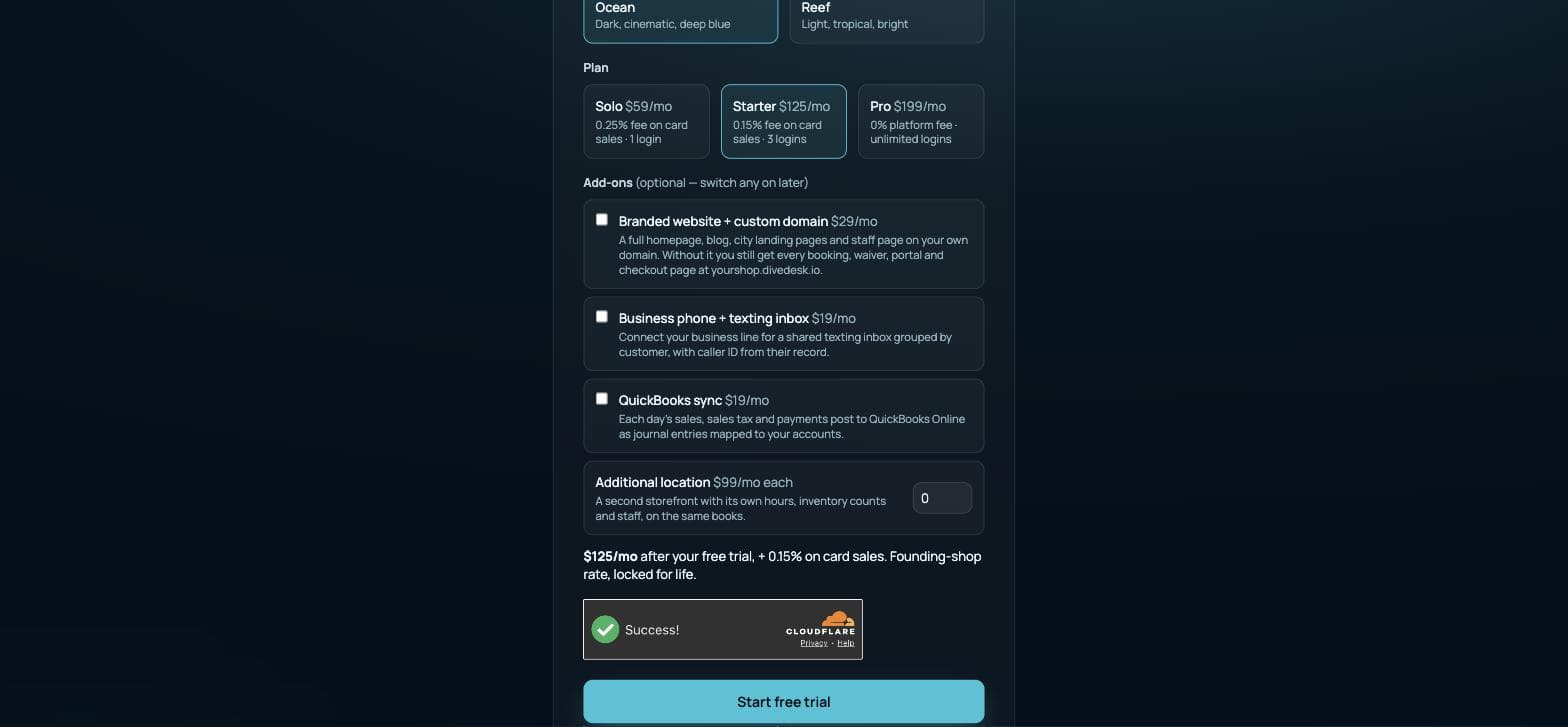
- Sign up on the Solo plan. Your admin is live in about a minute; the welcome email has a temporary password.
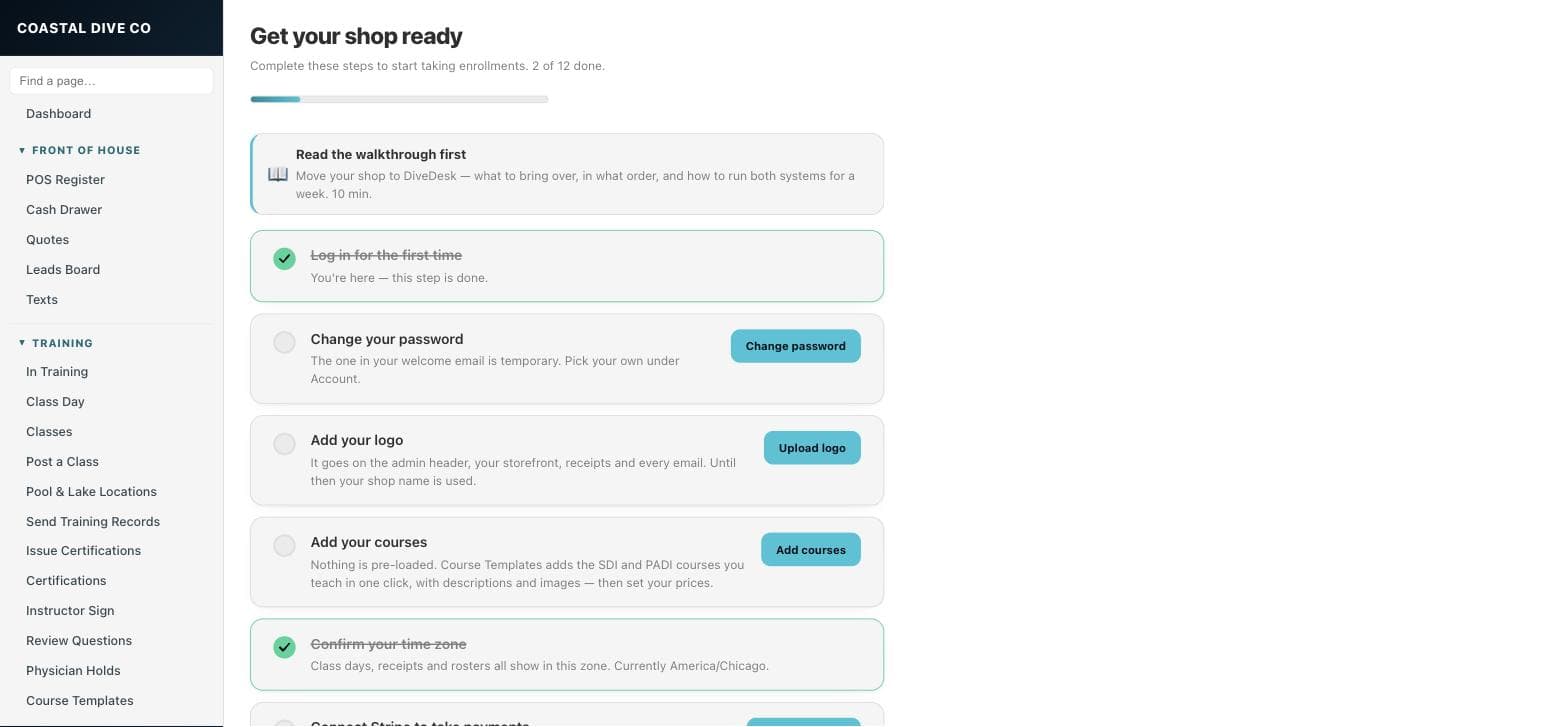
- Change that password first (Settings → Account), then set your time zone.
- Connect Stripe (Settings → Stripe Connect). Use your existing account if you have one.
- Add your courses. Nothing is pre-loaded: open Training → Course Templates, pick the courses you teach, then set your price and tick Active on each. Upload your logo under Settings → Brand while you’re there.
- Choose your waivers and training records (Settings → Waivers & Records). Three waivers are already in with your shop’s name filled in — liability release with the medical questionnaire, rental agreement, trip waiver — and the SDI and PADI Open Water referral forms are what DiveDesk fills at the end of a course. Keep each one, or upload your own PDF in its place. Students sign from their phone before the first session.
- Add your pool and your lake under Pool & Lake Locations.
- Post your first class (Training → Post a Class): the pool day and the lake days on one roster.
- Open the course you just scheduled and press Copy on the Course link in the sidebar. That link is your storefront.
How students reach you
Post the course link in a Facebook group, on your Instagram, in a text thread. Whoever taps it lands on a page with your description, price and Enroll button. They pay by card, get a receipt, get the waiver, and appear on your roster and in your Contacts — you did nothing. The class also has its own signup link (on the class record) for people you have already sold.
What happens after they enroll
- They sign the waiver and medical questionnaire. If an answer needs a doctor’s sign-off, the record is flagged in red under Physician Holds until you clear it.
- They do eLearning with the agency. You mark it done, or upload their eLearning results as a review document and send it for signature.
- Class Day: on the pool day and each lake day, open Class Day, tick attendance, log dives and skills, submit. Their training record fills itself in and their stage moves from needs-pool to needs-lake to complete.
- Send Training Records: when the record is complete, send it for the student’s e-signature, countersign it yourself, and the agency referral form is generated with your instructor number on it.
- Issue Certifications: when the record is signed and eLearning is done, the student shows up under Ready to issue. Enter the card number and date; it is on their profile forever.
Keeping the books
Every enrollment is an order with a receipt. Money → Finance shows income net of refunds by month, in your time zone, and Sales Tax shows what you collected. If you use QuickBooks Online, the QuickBooks add-on posts each day’s totals as a journal entry so your accountant never keys anything.
Something here is wrong or missing? Email hello@divedesk.io.