Help center
How to run your shop on DiveDesk
69 short guides, one per screen, written from the product as it is today. Inside your admin, the Help link in the sidebar opens the guide for the page you’re on.
Getting started
Day one to first sale — for a shop switching over and for an instructor starting out.
Start a scuba instruction business on DiveDesk
The independent instructor’s path: what to have ready, what to set up on day one, and how your first students find and pay you with no storefront at all.
8 min read
Move your shop to DiveDesk
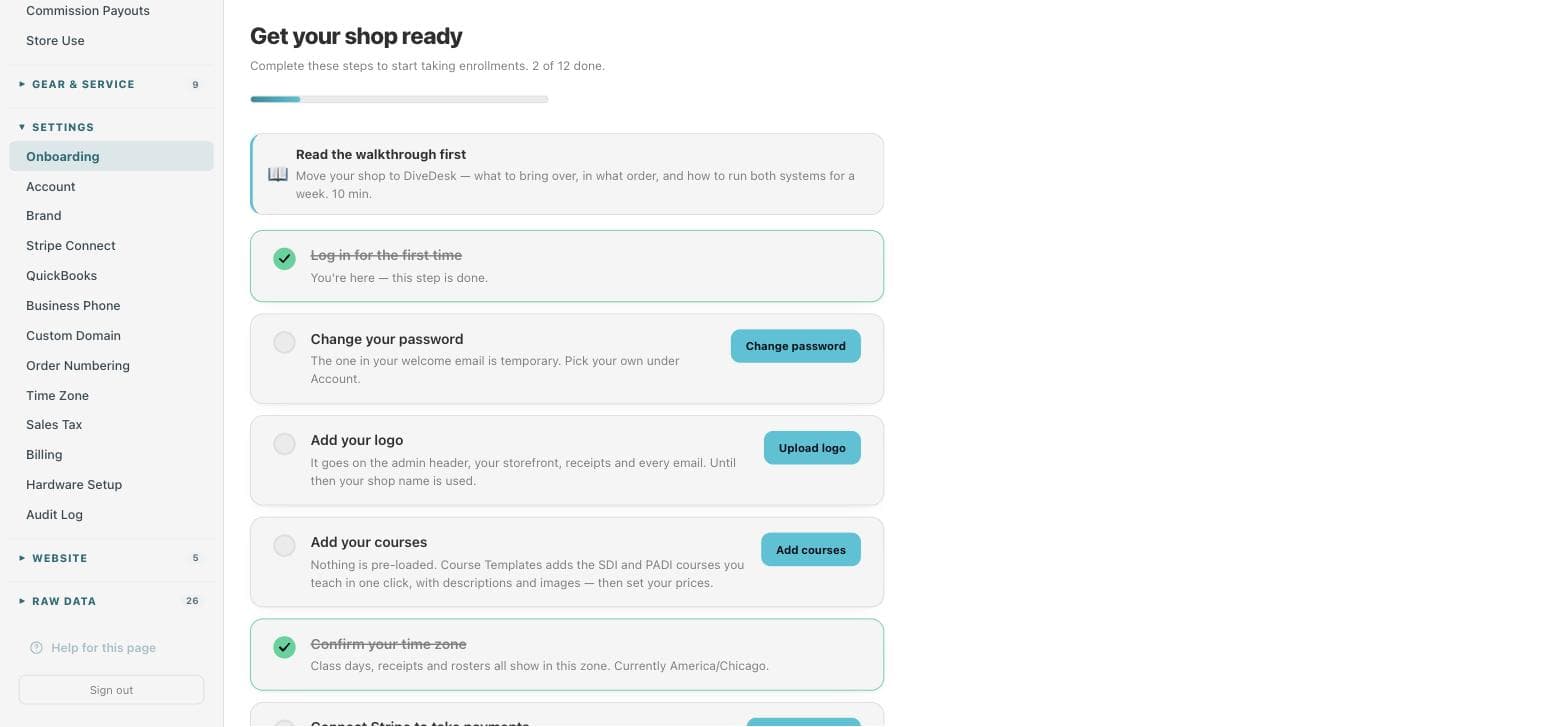
Switching from DiveShop360, Square, SmartWaiver and spreadsheets: what to bring over, in what order, and how to run both systems for a week without losing a sale.
10 min read
Keep your website, run the shop on DiveDesk
Your current site stays exactly as it is. DiveDesk runs students, classes, waivers, the register and the customer portal behind it — linked from your menu or on book.yourshop.com.
6 min read
Your first class, end to end
From posting the class to issuing the card: every screen in the order you will actually touch it.
6 min read
How to price a course
A worked method for setting a course price that covers your real costs, plus how to put it in DiveDesk.
5 min read
What your customer sees
The pages, emails and portal a student goes through, so you can answer “what do I do now?” without looking.
4 min read
Front of house
The register, cash drawer, quotes, leads and texts.
POS Register
Ring up courses, gear, trips and air fills at the counter — card on the reader, cash, check, or an emailed invoice or quote.
Cash Drawer
Count the starting float at open and reconcile against the day’s cash sales at close.
Quotes
Send a priced offer the customer can accept later — no order and no charge until they do.
Leads Board
Every website inquiry and portal question as a pipeline you move cards along.
Texts
Client texts to your business line, as a queue of who still needs an answer.
Training
Classes, rosters, class day, training records, review questions and certifications.
Set up your courses
Add the courses you teach from Course Templates, set price and agency, activate them, and share a course link.
Enrollments: the training record behind every student
What an enrollment is, what each status means, when to open the raw list instead of In Training, and how to move a student out and back.
Documents: PDFs sent for signature or kept on file
Any PDF that belongs to a person — review questions, a physician’s medical, an instructor’s upgrade form — sent for e-signature or filed as-is.
Post a class
Put a pool or lake day on the calendar, get the signup link, build the roster and push it to Google Calendar.
Classes overview
Everything on the schedule: run a class day, edit it, see the roster or copy its signup link.
Run a class day
Mark attendance, log pool sessions, dives and skills, then submit. The student’s stage advances on its own.
In Training and the training record
See who owes a pool session or a lake dive, who cannot be reached, and edit a training record in place.
Pool and lake locations
Save each pool, lake and classroom once so class days, confirmation emails and the public calendar reuse it.
Send training records for signature
What a training record is, when it is ready, and how student, guardian and instructor sign it.
Review questions
Tick off eLearning, upload the review-questions PDF, send it for signature and track who has not signed.
Issue certifications
Enter card numbers, issue cards, handle classroom courses and hand-entered cards, and look up past certifications.
Physician holds
What puts a participant on a physician hold from the medical questionnaire, and how to clear it.
Waivers
Build your own waiver, share its public link, handle minors and the medical questionnaire, and find signed copies.
Orders & customers
Online orders, shipping, contacts and cleanup.
New Orders board
Paid course orders waiting on eLearning, and paid gear waiting to be handed over or shipped.
Orders
Search every order, resend unpaid invoices in bulk, and fulfill or refund from the order page.
Shipping
Push paid ship-to-me orders to Shippo, buy the label there, and let tracking flow back to the order, portal and customer.
Contacts
Find any person and see everything about them on one profile — training, certs, orders, documents, waivers and texts.
New Contact
Add a person with just a name and email; everything else lives on the profile that opens next.
Dedupe Contacts
Scan for import placeholders that duplicate a real contact and fold them into the real record.
Marketing & website
Email Studio, discount codes, promotions, your site pages and blog.
Send an email blast with Email Studio
Design a newsletter, pick who gets it, pace the send, and read the opens and clicks afterwards.
Discount codes
Create a code a customer types at checkout or the register, with an expiry, minimum order and use cap.
Promotions and the Promo Tracker
Run a no-code offer like “free fins with Rescue Diver” and see who earned it.
Unsubscribes and who can’t be reached
The two opt-out levels, the stat tiles, and why “In training — call them” needs a phone call.
Your website: contact details, homepage, pages, blog, staff and city pages
Website in the admin is where your contact details, homepage, menus, search titles and extra pages live; blog posts and staff bios are their own lists.
Trips
Selling trips, the manifest, rooms and payment plans.
Set up a trip in Trip Studio
Dates, deposit, pricing or room types, booking cutoff, sold-out — and the public trip page link.
Run a trip from the Trip Manifest
Add bookings and guests, assign rooms and bed types, mark divers, pick a group leader, charge extras, check in, cancel.
Trip deposits, installments and autopay
How the balance is split, what the customer sees on the pay link, reminder and past-due emails, and marking payments by hand.
Money
Finance, sales tax, commissions, store use and QuickBooks.
The Finance page
Income received by month, quarter and year, net of refunds, in your shop’s time zone — owner only.
Set your sales tax rate
The rate the register and storefront charge on goods, and the state you collect in.
Commission payouts
What each staff member has earned, what has been paid, paying out the difference, and the “Your Commission” card staff see.
Store Use and use tax
Gear pulled from stock at $0 — training sets, rental fleet, giveaways — valued at cost for the Taxable Purchases box.
QuickBooks Online sync
Post one balanced summary of each day’s sales into QuickBooks Online. Needs the QuickBooks add-on.
Connecting QuickBooks Online
Connect, map your accounts, preview a day, and turn on the nightly post. What is read and what is written.
Gear & service
Inventory, vendor catalogs, rentals, service desk and labels.
The Gear & Inventory hub
One page that fans out to catalogs, stock counts, receiving, reorders, labels and tank tracking.
Products: fields that matter
What each field on a product record does — price, cost, SKU, barcode, variants, storefront section, and the shareable Product link.
Vendor catalogs and Search Parts
Subscribe to a vendor’s price book at your dealer tier, then pull parts — or a whole line — into your inventory.
Inventory Scan: counting and receiving
Scan a shelf to count it, scan a delivery to receive it, capture real UPCs, fix mis-scans, and print the labels in one go.
Reorder List: what to buy from each vendor
Everything sold since your last order, grouped by vendor, plus a low-stock flag list; print or email the PO.
Print Labels
Scan one item to print its label, or relabel a batch from the in-stock list; pick the label stock once per browser.
Rental Gear: numbered sets
See who has which set, check a set out to a customer or a class, and confirm every piece comes back.
Service Desk: drop-off to pickup
Check gear in with a claim tag, move it Checked in → In service → Ready for pickup, bill tank services, and check it out.
Tank & Gear Tracking
Every customer tank and serviced item with its hydro and VIP status, and a Bill button for each service that is due.
Settings
Stripe, staff logins, domain, time zone, billing and hardware.
Connect Stripe
Connect an existing Stripe account or create one, so online checkout and the POS reader pay straight into your bank.
Staff logins and roles
Add a login, pick a role, mark who teaches, record instructor numbers, and know what each role can open.
Your own login and password
Change your password while signed in, or get a reset link from the login page when you are not.
Use your own domain
Put your DiveDesk pages on book.yourshop.com (keep your website) or yourshop.com (move it here) with one CNAME record, then verify.
Set the shop time zone
The one clock every class day, receipt, roster and cash-drawer day is shown in — for you and for customers.
Order numbering
Set a prefix and starting number for POS, web and invoice orders — the change applies to the next order only.
Your DiveDesk plan and billing
Plan, platform fee, trial date, add-ons and the card on file — and where to change the card.
Business phone: Quo texting and caller ID
Connect Quo so customer texts land on their profile, staff reply from the Texts page, and incoming calls show the caller’s name.
Audit log
Who changed what, when — every staff create, edit, delete and login, with the field names that changed.
Card reader, label printer and scanner
The Stripe Reader S700 in five steps, and which label printer and barcode scanner to buy.
What customers see in the portal
How a customer signs up and in, and what each portal tab shows — courses, class days, orders and tracking, documents, uploads and to-dos.
The DiveDesk API
A read-only REST API with a per-shop key — contacts, orders, classes and your shop profile for your website, CRM or reports.
Your logo and brand color
Upload the logo that goes on your admin header, storefront, receipts and emails, and pick the color your emails use.
Your waivers and training records: keep ours or upload your own
Every shop starts with DiveDesk’s waivers and the SDI/PADI referral forms. See each one, keep it, or put your own PDF in its place.
Media: the images behind your site
Every photo and graphic your storefront shows lives in Media — what to upload, what the alt text is for, and why some files there are private.
Card reader setup (Stripe Reader S700)
Unbox, pair, and take the first tap-to-pay sale at the register.