Your own login and password
Change your password while signed in, or get a reset link from the login page when you are not.
2 min read · in your admin: /admin/account
Account is your own login. Staff logins for other people are under Settings → Staff Logins. The top card shows who you are signed in as, with your email and role.
Change your password
- Under Change password, type your Current password.
- Type a New password of 10 or more characters, then the same again under New password again.
- Click Change password. The page confirms Password changed. You’re still signed in.
Forgot it?
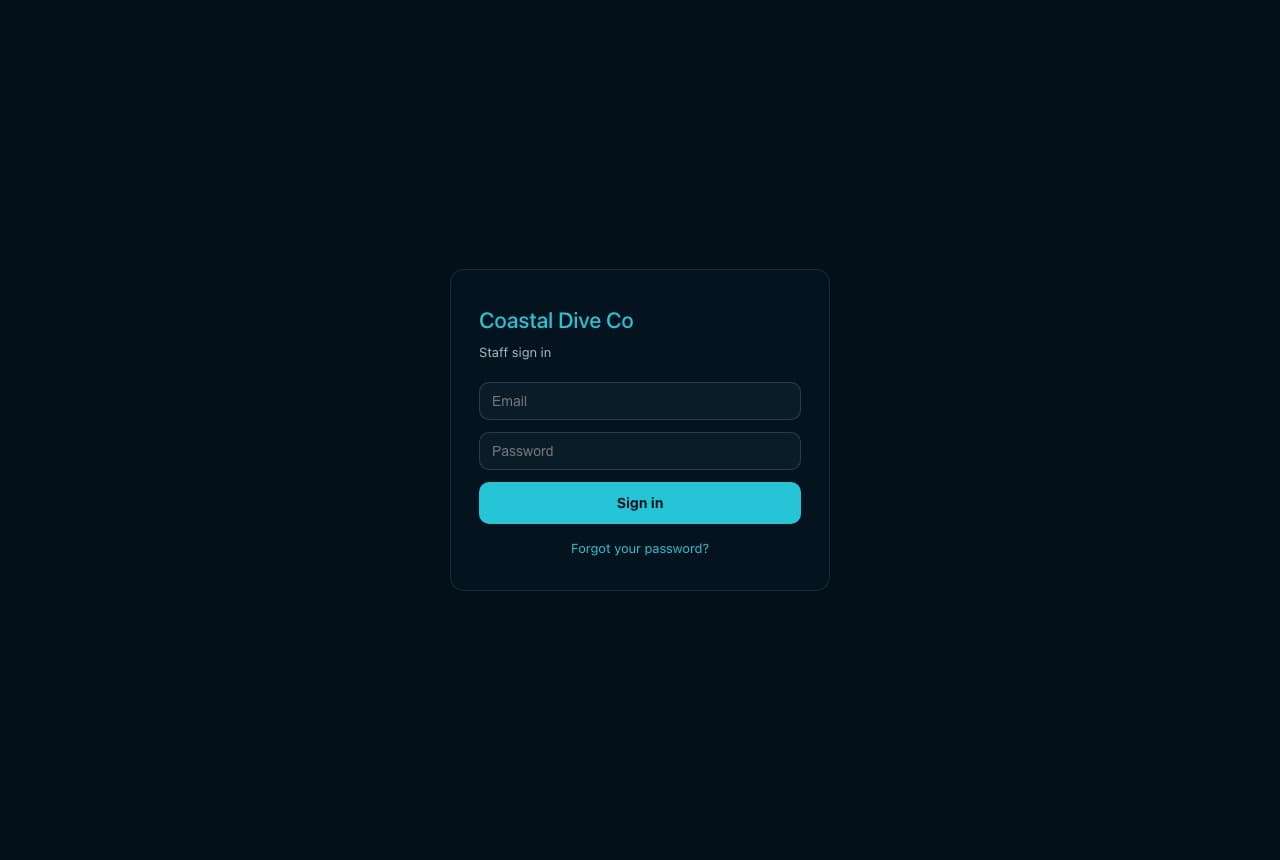
- On the sign-in page click Forgot your password?.
- Enter the email you sign in with and click Email me a reset link.
- Open the email and set a new password. The link works for one hour; after that, request another.
An Admin can also send you a reset link from your row in Staff Logins with ✉ Send Password Reset Link — useful when you have lost access to the email address as well.
TipA sign-in lasts 30 days on that browser. Changing your password signs out every other device, which is the quickest way to lock out a phone you no longer have.
Something here is wrong or missing? Email hello@divedesk.io.