Your logo and brand color
Upload the logo that goes on your admin header, storefront, receipts and emails, and pick the color your emails use.
2 min read · in your admin: /admin/brand
Settings → Brand is where your shop stops being a name in capitals and starts looking like you. Admin role only.
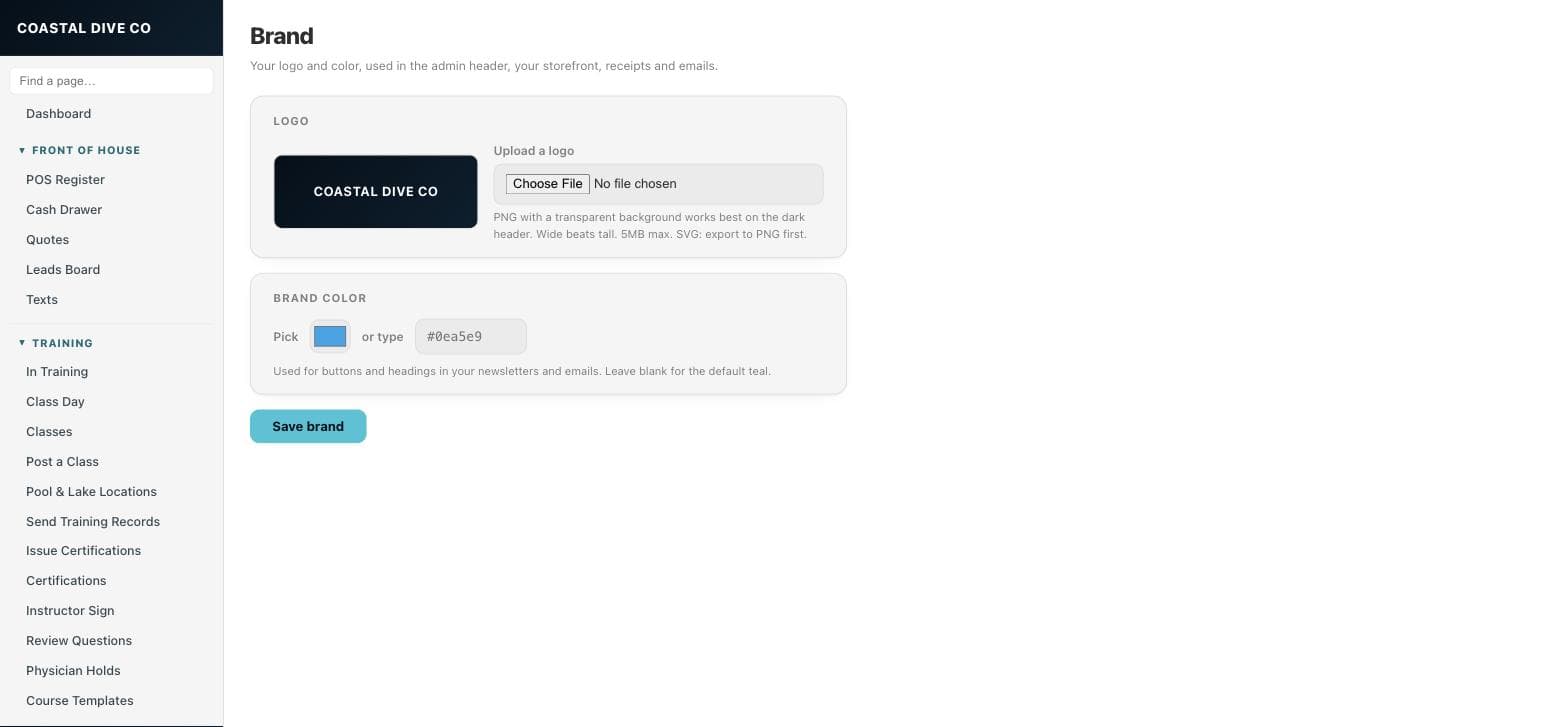
Upload a logo
- Open Settings → Brand.
- Choose a PNG, JPEG or WEBP under 5MB. A PNG with a transparent background reads best on the dark admin header; a wide mark beats a tall one.
- Check the preview on the dark swatch, then press Save brand.
- Reload any open admin page — the header picks it up on the next load. Storefront, receipts and emails use it from then on.
Brand color
Pick a color or type a hex value like #0ea5e9. It colors buttons and headings in newsletters and transactional emails. Leave it blank to keep the default teal. Your storefront theme (Ocean or Reef) is separate and was chosen at signup.
TipHave only an SVG? Export it to PNG at 800px wide. SVG uploads are refused on purpose — they can carry scripts.
CarefulRemove logo puts your shop name back in the header. It does not delete the file from your media library.
Something here is wrong or missing? Email hello@divedesk.io.