Set up your courses
Add the courses you teach from Course Templates, set price and agency, activate them, and share a course link.
6 min read · in your admin: /admin/collections/courses
A course is what a student buys and what their training record is measured against. Your shop starts with no courses — nothing you don’t teach ever sits in your catalog. Add the ones you do from Course Templates (below), then check the price and copy and switch each one on.
Activate a course
- Open Courses in the left nav (/admin/collections/courses). Inactive courses show a gray Inactive pill.
- Open a course and set Price. A template price is a placeholder — make it yours.
- Set Agency (SDI, PADI or Both) and Level.
- Check In-water sessions. It decides which class-day email list a student lands on the moment they sign up (pool list, lake list, both or neither).
- Add a Featured image. Landscape, at least 1600×1000, JPG, PNG or WEBP under 5MB.
- Set eLearning provider (SDI or PADI) if the course has online theory.
- Tick Active in the sidebar and Save. The course now appears on your storefront, in checkout and in the register.
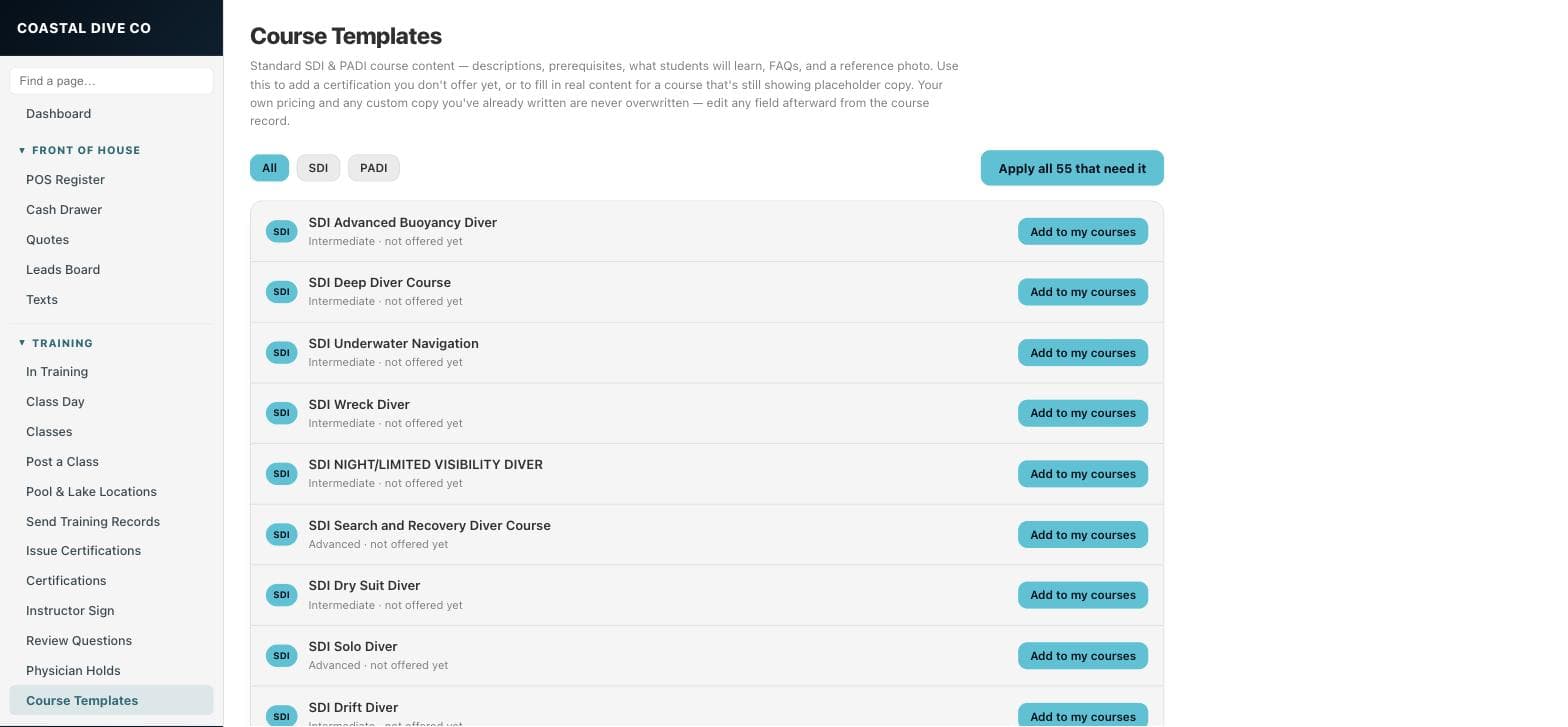
Add a course from the agency templates
Course Templates (/admin/course-templates) holds standard SDI and PADI course content: description, prerequisites, what students will learn, FAQs and a reference photo.
- Filter with the All, SDI and PADI buttons.
- A course marked “not offered yet” has an Add to my courses button.
- A course marked “missing prerequisites / what-you’ll-learn” has a Fill missing content button.
- Apply all N that need it does both in one go.
- Your pricing and any copy you already wrote are never overwritten. Edit anything afterward from the course record.
Training record requirements
The Training record requirements group on each course drives Class Day and the training record: swim and float tests, confined-water sessions required, open-water dives required, and the course’s own skills checklist. Turn Tracks a training record off for classroom-only courses (Nitrox, equipment) so Issue Certifications does not wait for a signature that never comes. Tick Uses the official agency referral form only on the real Open Water course.
A course the agency hands out with another one
SDI gives every Open Water signup the Snorkeler course. On a course like that, turn Tracks a training record off and tick The agency hands this out with another course. It then appears as a tick-box on the paid course’s training record, under “Also included with this course” — tick anyone who actually did it and DiveDesk creates their record, puts them on the Review Questions page, and holds their card until the paid course is finished so both go out together. Leave the box off for anything a student has to buy on its own. Pricing it for the website makes no difference: a course can be sold and handed out at the same time.
Share the course link
Once the course is saved with a slug, two links appear in the sidebar, each with a Copy button. Course link is the public page — description, price, FAQ and an Enroll button; paste it into a post or a text. Buy now link is the same page with the enrollment form already open; put it behind the Enroll or Buy button on your own website so a buyer goes straight to checkout. Every course has its own pair, and every product has the same pair under Products.
Something here is wrong or missing? Email hello@divedesk.io.